If someone gets hold of your password, multi-factor authentication (MFA) is what keeps them out of your email, your books and your customer list. It asks for a second proof that it's really you, usually a code or a tap on your phone.
This is the short version I'd give a client over coffee. Start with the accounts that matter most, then work down the list. Any MFA is better than none.
Why it is worth ten minutes
Passwords get reused, guessed and phished. A second factor means a stolen password alone is not enough. CISA says users who turn on MFA are significantly less likely to get hacked, and that any MFA is better than no MFA. Microsoft reports that MFA plus blocking legacy sign-in stops more than 99.9% of common identity attacks (that is Microsoft's own figure).
Pick the strongest second step
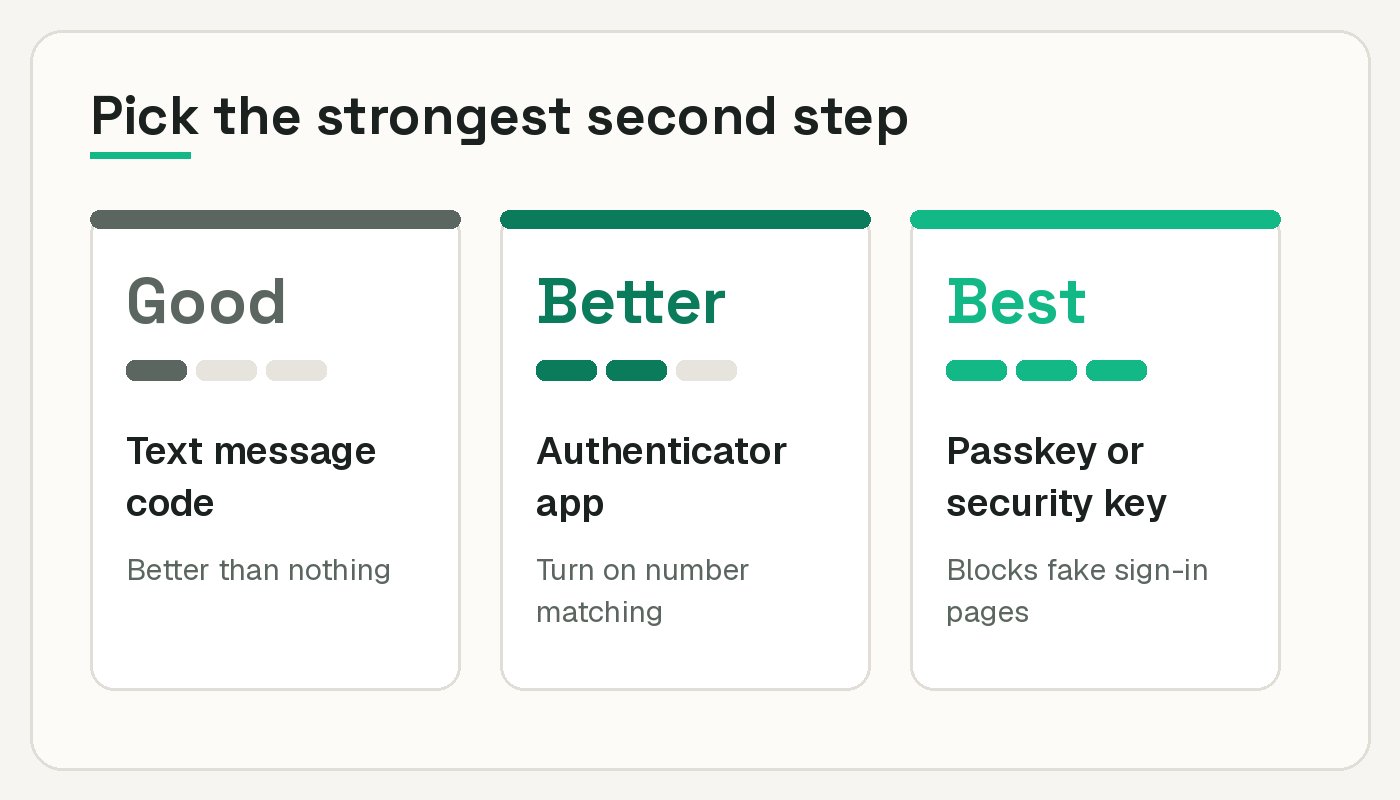
- Text message codes. Better than nothing, but tied to your phone number. Use them only if an app offers nothing else.
- Authenticator app or phone prompt. A solid everyday choice. Where you can, turn on number matching, which the Canadian Centre for Cyber Security recommends against repeated approval prompts.
- Passkeys and security keys (FIDO). The Cyber Centre strongly recommends FIDO-based options, and CISA calls FIDO/WebAuthn the only widely available phishing-resistant type.
Whatever you pick, save the backup codes somewhere safe. A password manager or a printed copy in a locked drawer both work.
Microsoft 365
Turn on security defaults
If you don't want to pay for Entra ID P1 or P2 licences and the conditional access policies that come with them, security defaults are a good start and far better than nothing. Microsoft built them for organizations on the free tier. Admins must use MFA, other users get prompted when Microsoft decides it is needed, and old sign-in methods like Exchange ActiveSync basic authentication are blocked.
- Sign in to the Microsoft Entra admin center as an admin (Conditional Access Administrator at minimum).
- Go to Entra ID, then Overview, then Properties.
- Select Manage security defaults, set it to Enabled and save.
Check first, because tenants created on or after October 22, 2019 may already have it on. It is also on or off with no customization, and it cannot run alongside conditional access policies. If you already have P1 or P2, use conditional access instead. Full details are in Microsoft's security defaults guide.
Personal Microsoft accounts
Sign in at account.microsoft.com/security, choose Manage how I sign in, then turn on two-step verification and follow the prompts. Microsoft recommends having three pieces of security info on file so you don't get locked out. Older apps that can't take a code will need an app password. Steps are in Microsoft's two-step verification article.
Google Workspace and Gmail
Workspace admins
- Sign in to the Admin console as a super admin and go to Menu, Security, Authentication, then 2-step verification.
- Pick the organizational unit you want to cover.
- Tick Allow users to turn on 2-Step Verification, then set enforcement to On, or choose a future start date.
- Set a new user enrollment period (1 day to 6 months) so new hires can get set up.
- Choose the allowed methods. The security key only option now includes passkeys.
- Save.
If you block text and phone codes, anyone still relying on them gets locked out, so have people enrol before you enforce. Google's steps are in its 2-Step Verification deployment guide.
Gmail and personal Google accounts
Go to myaccount.google.com, choose Security & sign-in, and under How you sign in to Google select Turn on 2-Step Verification. Google recommends phone prompts, and you can also download backup codes. See Google's turn on 2-Step Verification page.
Adobe and Slack
Adobe. Sign in at account.adobe.com/security and find the two-step verification section. You can use the Adobe Account Access app, email or text message. The app is the better pick. Adobe's setup page walks through it.
Slack. Open my.slack.com/account/settings, expand Two-Factor Authentication and choose Set Up Two-Factor Authentication. Pick an authentication app over text. Workspace owners can require an app so members can't fall back to SMS. Slack's help article has the details.
Other apps small businesses use
These are the vendors' own help pages, which I opened while writing this:
- monday.com: an admin turns it on under Administration, Security, Authentication. It is available on all plans, though text message codes are not offered on free or trial accounts.
- HubSpot: under Settings, General, Security. Passkeys and authenticator apps are on every tier, and a Super Admin can enforce it for everyone.
- Jobber: account owners set up a text message code, and it is required for owners using Jobber Payments.
- Buildxact: scan the QR code with a real authenticator app, not your phone's camera.
- Xero: MFA is mandatory for Xero users. Use the Xero Verify app, or a third-party authenticator such as Google Authenticator or FreeOTP.
- Mailchimp: set it up on the Account security page with an authenticator app or SMS. If an Owner or Admin enables it, everyone on the account has to set it up at their next login.
- Shopify: each staff member sets up their own, and the store owner can't do it for them. Authenticator apps and security keys work, and SMS is only for accounts that already use it.
- Dropbox: Settings, then Security, then turn on 2-factor authentication. It supports authenticator apps, security keys and passkeys.
- GoDaddy: turn on 2-Step Verification in the Enhanced Security section of your Security page, after setting up at least one verification method.
- Trello: two-step verification is managed through your Atlassian account, and Trello's page links to the steps.
- Zoom: an account owner or admin turns on Sign in with two-factor authentication under Advanced, then Security.
Not on the list? Search the app's name plus "two-factor authentication" and use the vendor's own help site, not a blog.
What to do this week
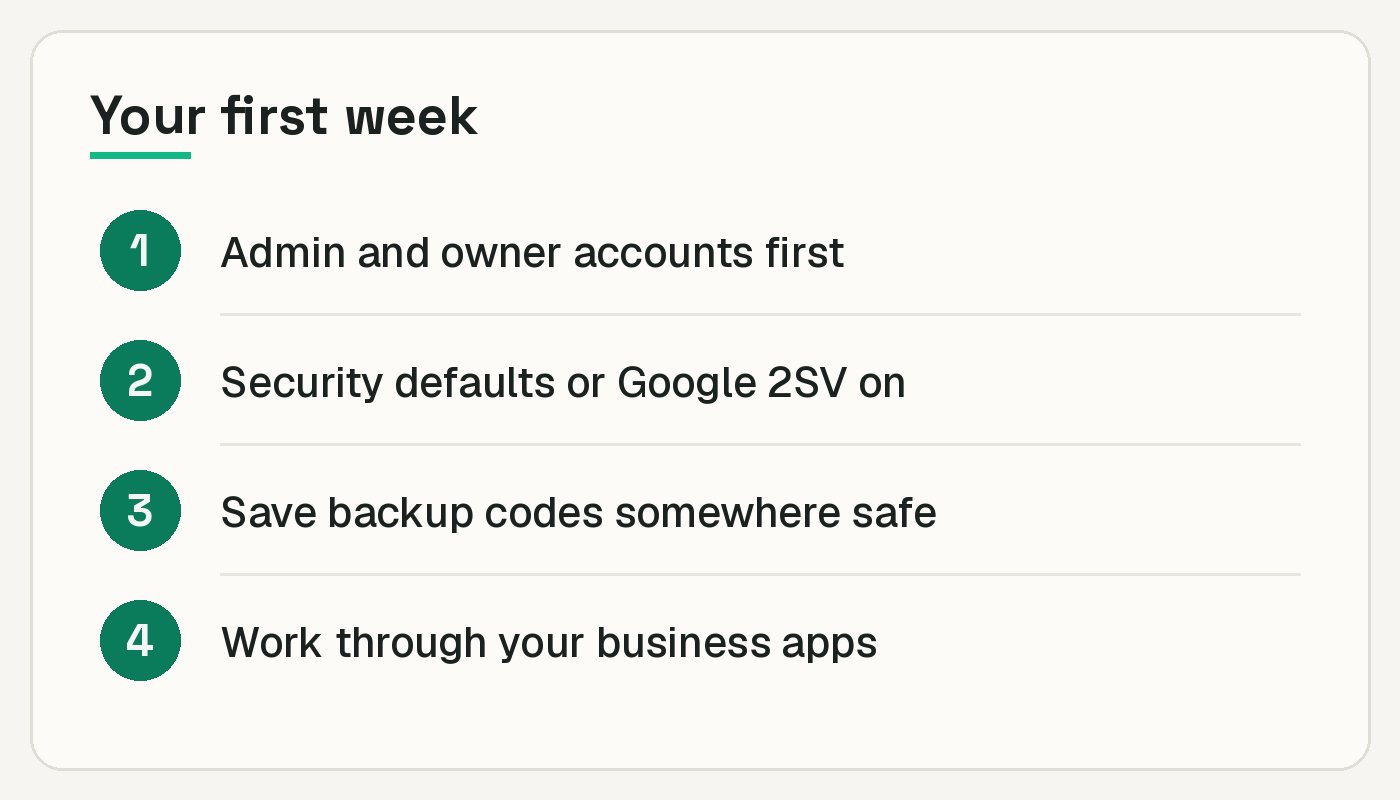
- Turn on MFA for every admin and owner account today.
- Switch on security defaults in Microsoft 365, or enforce 2-Step Verification in Google Workspace.
- Save backup codes for each account.
- Work through your business apps, and ask staff to register their second step.
None of this needs a big budget, just an afternoon. Do the admin accounts first and the rest gets easier.