A virtual assistant can be one of the best hires a small business makes. They're also one of the fastest ways to hand a stranger access to your inbox, your shared drive, and sometimes your accounting software. The question I get asked most is simple: should a VA use their own computer, or should you give them one? There's a real answer, and it depends on how much risk you're willing to carry and how long the arrangement is meant to last.
What I've seen go wrong
I've come across virtual assistants working from custom built computers running cracked copies of Windows, activated with tools like KMSPico instead of a real licence. That's not a harmless shortcut. Microsoft's security team reported in September 2026 that fake software installers (pages pretending to offer a driver, a browser, or antivirus software) were being used to plant malware that disables Windows Update, adds exclusions to Microsoft Defender so the malware stays invisible, and talks to attacker servers over non standard ports. A cracked activation tool comes from the same kind of shady download site that campaign relies on.
If that's the machine your VA is using to sign into Microsoft 365 or Google Workspace, you have no idea what else is running on it, whether it gets security updates, or who else has used it before them.
And it's rarely just one risk at a time. Canada's Centre for Cyber Security points to a handful of things that stack up with personally owned devices: apps installed outside your control that can read data, location, and network settings; information leaking out through personal social media or an unsecured public Wi-Fi connection; family members or roommates who share the device and can accidentally see business data; and phones or computers that have been rooted or jailbroken to remove the built in security controls entirely. None of these show up in a quick video call. You only find out after something has gone wrong.
Ask these questions before you decide
Before you hand over a login, get honest answers to these:
- Is this the only person who uses this computer, or does it get shared with family or roommates?
- Is the operating system genuinely licensed and still receiving security updates?
- Is there antivirus or endpoint protection running, and can you actually see its status?
- How much of your business can this one login reach: just a shared inbox, or your whole drive, accounting system, and client records too?
- If the relationship ends badly, how do you cut off access the same day, from equipment that isn't yours and may be in another country?
Three ways to give a VA access
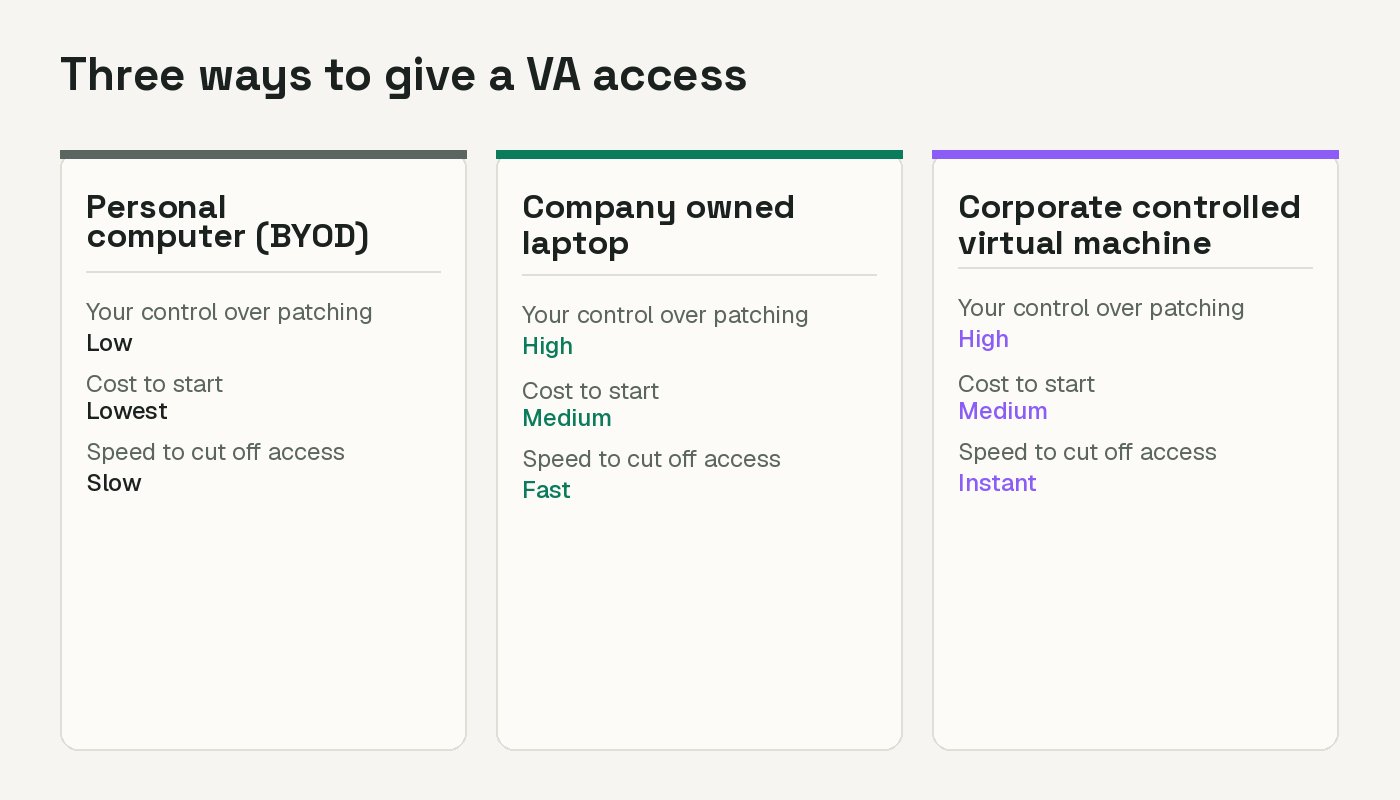
Their own computer (BYOD). Cheapest and fastest to start. You have no control over patching, antivirus, or who else touches that device. Canada's Centre for Cyber Security lists unauthorized apps, data leakage, and device sharing as core risks of personally owned devices, and notes that corporately owned devices give you stronger security controls by comparison.
A company owned laptop you ship to them. You choose the build, keep it patched, run your own antivirus, and can remote wipe it if things go wrong. The tradeoff is cost and logistics: buying the hardware, shipping it, and getting it back (or writing it off) when the engagement ends.
A corporate controlled virtual machine. The VA connects from their own device, but the actual work happens on a machine you own, sitting in the cloud or on a server you control. This could be a cloud PC service, a virtual desktop your IT provider hosts, or a virtual machine on your own server. You can lock it down, monitor it, or delete it in seconds no matter what device they log in from. It can cost more to run over the long haul than a laptop, but there's nothing physical to chase down if the arrangement doesn't work out. You just deprovision the VM.
This third option is often the most practical when you're still deciding if a VA relationship is going to work out. Shutting off a laptop halfway around the world means asking someone you may no longer be on good terms with to mail equipment back, and that doesn't always happen. Shutting off a virtual machine takes a few clicks from your own desk, no matter where the VA is or how the relationship ended.
Give them a scoped login, not your own
Whichever device setup you land on, don't hand a VA your own username and password, and don't give a brand new account owner level access to everything just because it's faster to set up. Create a separate account for them and grant only what the role actually needs: delegate access to a shared inbox instead of forwarding your own credentials, or scope permissions to the one SharePoint site or shared drive folder they work in. This is the "just enough access" idea that Canada's Centre for Cyber Security points to as part of a zero trust approach: give the minimum access required for the task in front of them, and add more only when there's a real reason to. It also means that if you do need to cut someone off, you're closing one scoped account instead of untangling it from your own.
Lock the login to a known network
Whichever option you pick, you can add a layer that doesn't depend on trusting the device at all: restrict the login itself to a specific IP address or range.
In Microsoft 365, this is done with Conditional Access named locations, which let you allow or block sign in based on IP range. It requires a Microsoft Entra ID P1 licence, which is included in Microsoft 365 Business Premium, so many small businesses already have it without buying anything extra. A tenant can define up to 195 named locations, each built from one or more IP ranges, so you can name a location "VA static IP" and point your Conditional Access policy at it directly.
In Google Workspace, the equivalent is Context Aware Access, which can restrict access based on a public IP subnet. One catch worth knowing before you plan around it: it isn't available on Business Standard or Business Plus. You need Enterprise Standard, Enterprise Plus, or Cloud Identity Premium.
Getting a static IP without building your own network
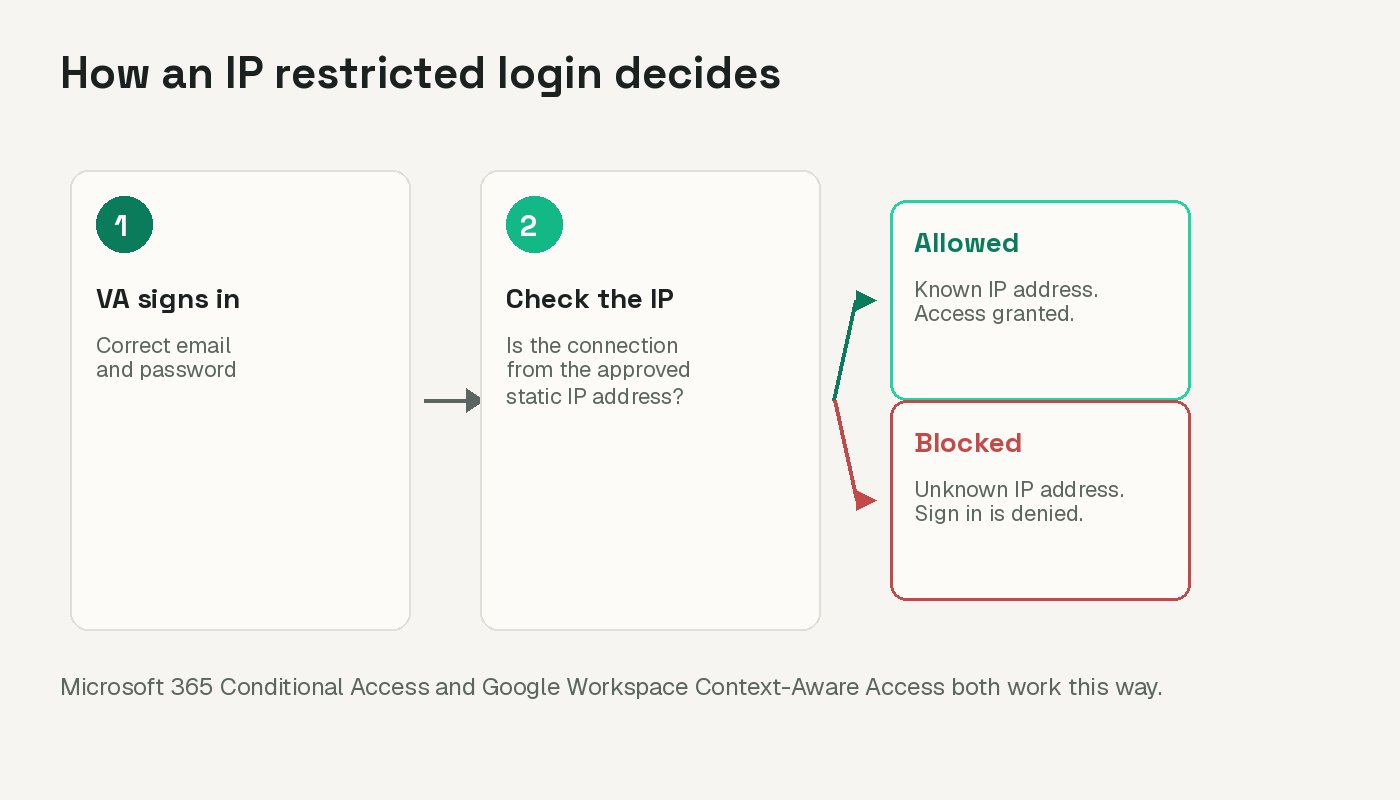
Conditional Access and Context Aware Access are only useful if the VA's connection always comes from the same, predictable IP address. Most home internet connections don't offer that on their own. This is where a ZTNA (zero trust network access) client comes in: the VA signs into a small agent on their device, and their traffic to your systems goes out through a fixed IP that the vendor assigns to your organization. You allow that one IP in Conditional Access or Context Aware Access, and it no longer matters whether the VA is on home Wi-Fi, a co-working space, or a hotel connection.
Two products offer this without an enterprise sized contract. GoodAccess includes a dedicated static IP with static IP whitelisting on its entry level Essential plan (a per user monthly price with a five user minimum, per their published pricing page). NordLayer includes a similar static IP option as a paid add on to its Core plan (a per user monthly price plus a flat monthly fee for the dedicated IP server, also per their published pricing page). Check each vendor's own pricing page for current numbers before you commit, since prices change.
Not every vendor in this space works this way. Cloudflare Zero Trust states in its own documentation that a dedicated, static egress IP is an Enterprise plan feature, so you'd need to contact their sales team for a quote rather than buy it directly. If you're already using Cloudflare Zero Trust for other reasons and don't want an Enterprise contract, there's a different route to a similar result: instead of locking the login to an IP address, require that the connection come from a device enrolled in your Cloudflare Zero Trust organization, running their client and signed in through your identity provider. That's not a static IP, and it's set up as a Cloudflare Access policy rather than inside Conditional Access, but it aims at the same goal: only a device you've approved can reach the resource, whatever internet connection it happens to be sitting behind.
This isn't just an overseas VA problem. Any remote worker using their own device, even someone working from home in the same city, benefits from the same setup. Compared to standing up a full VPN infrastructure or a virtual machine for every remote staff member, a ZTNA subscription is usually the cheaper way to get that same "only from an approved connection" control.
Which setup fits where you're at
If you're testing out a new VA or only need help for a short project, a corporate controlled virtual machine is the easiest to walk away from. One click and access is gone, no equipment to chase.
If you've worked with someone for a while and trust is established, a company owned laptop paired with a Conditional Access or Context Aware Access lock is a solid long term setup.
If you're relying on several remote staff or VAs on their own devices, a ZTNA product with a static egress IP (or, on Cloudflare, an enrolled device policy), combined with the same login restrictions, scales better than managing individual VMs or laptops for everyone.
Do this in the next week
- List every VA or remote contractor with access today, and what each login can actually reach.
- Ask them directly: is the device company owned, personal, or shared with anyone else, and is the operating system genuinely licensed?
- If any answer worries you, move that login into a locked down virtual machine, or behind an IP restriction, before granting anything further.
- If you're on Microsoft 365 Business Premium or a Google Workspace edition that supports it, turn on a location or IP restriction for that account this week.
- Write down, today, exactly how you'll cut off access the same day if a working relationship ends badly.
None of this needs to be complicated to be effective. Start with knowing what device your VA is actually using and what it can reach, then add the lock that matches how long you expect the relationship to last. The goal isn't zero risk, it's making sure you're the one who gets to decide when access ends.